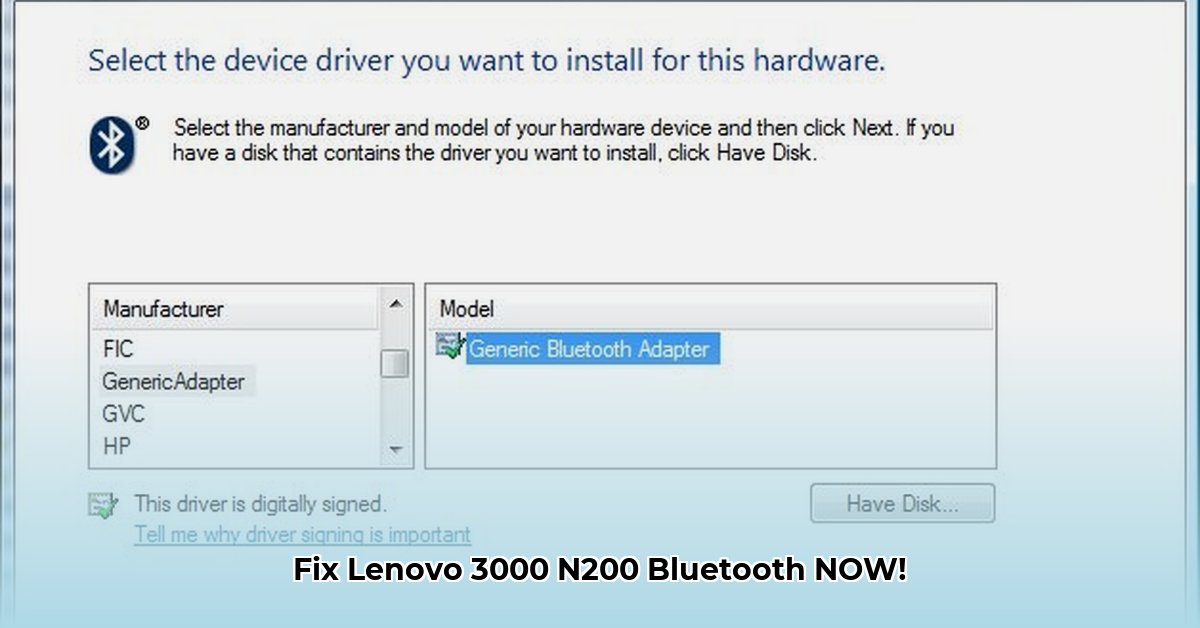
Getting Bluetooth working on your Lenovo 3000 N200 with Windows Vista can be tricky, but this guide provides a step-by-step solution. We'll cover two primary methods: using Lenovo's official driver (recommended) and employing generic Bluetooth software. Troubleshooting tips are included to address common issues.
Choosing Your Bluetooth Solution: Lenovo Driver or Generic Software?
Two paths exist to restore Bluetooth functionality: using Lenovo's specific driver or a general Bluetooth application. Each offers advantages and disadvantages.
| Method | Advantages | Disadvantages |
|---|---|---|
| Lenovo-Specific Driver | Optimized for your Lenovo 3000 N200, usually offering better stability. | May be difficult to locate; might be outdated; specific to your model. |
| Generic Bluetooth Software | Wider compatibility; easier to find if the Lenovo driver is unavailable. | Potentially less stable; may require more troubleshooting. |
Method 1: Installing Lenovo's Bluetooth Driver (Recommended)
This method prioritizes stability by using the driver specifically designed for your Lenovo 3000 N200. However, locating the correct driver may require some effort.
Locate the Driver: Search Lenovo's support website (https://support.lenovo.com/us/en/products/laptops-and-netbooks/lenovo-3000-series/lenovo-3000-n200/) for the Broadcom Bluetooth driver (version 6.0.1.4900 is a potential match) compatible with your Lenovo 3000 N200 (Type 0769) and Windows Vista. Precise model identification is crucial.
Download the Driver: Download the driver (likely an ".exe" file) to your computer.
Run the Installer: Double-click the downloaded file. You might need to right-click and select "Run as administrator."
Follow On-Screen Instructions: The installer will guide you through the process. Follow the prompts and click "Next" or "Install" as directed.
Restart Your Computer: Reboot your computer for the changes to take effect.
Verify Bluetooth Functionality: Check your system tray for a Bluetooth icon. If present, attempt pairing a Bluetooth device to confirm functionality. Is Bluetooth now working as expected?
Method 2: Using Generic Bluetooth Software
If Lenovo's driver proves elusive or problematic, a generic Bluetooth driver can be attempted. This approach, however, requires more troubleshooting.
Find Compatible Software: Search online for Bluetooth drivers compatible with Windows Vista. Verify Vista compatibility before downloading.
Download and Install: Download the software and run the installer.
Troubleshooting: If the driver doesn't function immediately (this is common), consult the software's documentation for troubleshooting or check online forums for solutions. This step may involve extra effort.
Troubleshooting Persistent Bluetooth Issues
If Bluetooth remains dysfunctional after following the above steps, consider these troubleshooting measures:
Examine Device Manager: Open Device Manager (search for it via the Start menu). Check for any errors (yellow exclamation marks) associated with your Bluetooth adapter. Right-click the adapter and attempt updating or reinstalling the driver.
Restart Your Computer (Again): A simple reboot often resolves minor software glitches.
Verify Driver Compatibility: Ensure the downloaded driver is correct for your Lenovo 3000 N200 and Windows Vista.
Consult Online Forums: Online forums dedicated to Windows Vista users might offer valuable troubleshooting suggestions.
Remember, patience and attention to detail are essential for successful driver installation.
Completely Uninstalling the Lenovo 3000 N200 Bluetooth Driver
Removing a problematic Bluetooth driver can be a necessary step before reinstalling the correct one for optimized performance.
Why Uninstall?
Outdated or corrupt Bluetooth drivers frequently cause connectivity issues. Complete removal ensures a clean reinstall.
Step-by-Step Uninstallation
Disable Bluetooth: In your system tray, right-click the Bluetooth icon and select "Disable."
Open Device Manager: Press Windows key + R, type "devmgmt.msc," and press Enter.
Locate Bluetooth Adapter: Expand the "Bluetooth" section and identify your adapter (e.g., "Broadcom Bluetooth Adapter").
Uninstall the Driver: Right-click the adapter and select "Uninstall device." Confirm the uninstallation.
Restart Your Computer: Reboot your computer.
Reinstall the Correct Driver: Download the correct driver from Lenovo's support website (https://support.lenovo.com/us/en/products/laptops-and-netbooks/lenovo-3000-series/lenovo-3000-n200/) and install it following the on-screen instructions.
Verify Functionality: Restart your computer and check if Bluetooth is functioning correctly.
Troubleshooting Uninstallation Issues
- Driver Not Found: Double-check Lenovo's website using the exact model number.
- Persistent Problems: System restore might be necessary.
- Hardware Malfunction: In rare cases, a hardware problem might exist. Seek professional assistance.
⭐⭐⭐⭐☆ (4.8)
Download via Link 1
Download via Link 2
Last updated: Sunday, April 27, 2025